Tuesday, January 8, 2013

How to remove funmoods

I was having difficulty removing funmoods completely from my laptop, here is some guide for whoever has the same problem:

In Firefox:
To removetoolbar/New Tab
Open Firefox, go to Add-ons Manager (Ctrl+Shift+A) > Select “Funmoods” and click on Remove

To remove from Home page:
Open FireFox, go to Tools > Options > on “startup” section click on “Restore to Default” button Then click on “OK”

To remove from search engine:
Search button--- Manage Search Engines---- select “Funmoods”---- Remove
For a step by step uninstall guide, please watch tutorial: http://www.youtube.com/watch?v=dT5PWzLDptc

---------------------------------

To remove from Internet Explorer Win7/Vista from toolbar:
Go to Start > Control Panel > Uninstall a program OR Programs and Features > Select “Funmoods” and click on Uninstall

To remove from Home page:
go to Tools > Internet Options > on “Home page” section click on “Use Default” Then click on “OK”

To remove from search engine: 
go to Tools > Internet Options > on “Search” section click on “Settings” > select “Live Search” or “Google” or “Bing” and click on “Set Default” > select “Search” and click on “Remove” > OK > OK
New tab (Internet Explorer 8-9)
go to Tools > Internet Options > on “Tabs” section click on “Settings” > on “When a new tab is opened, open:” select “The new tab page” > OK > OK

----------------------------------

In Chrome, to remove toolbar: 
Open Chrome, go to Options menu > Tools > Extensions > Click on the “bin” to remove 

To remove as homepage:
Open Chrome, go to Options menu > Settings > on the “Appearance” section, check the “Show Home button” > Change > select “Use the New Tab page”

To remove as search engine:
Go to your browser----Click on the tools icon---- options------Change search defaults ----- settings ----- click the name of your preferred search engine---- set as default---- (to remove Funmoods search)----select Funmoods ----remove---- okay
-Or-
Open Chrome, go to Options menu > Settings > on the “Search” section choose Google on the drop down menu
For a step by step uninstall and reset homepage guide, please watch tutorial: http://www.youtube.com/watch?v=dT5PWzLDptc


Thursday, November 29, 2012

Peoplesoft Hot Keys


Peoplesoft Hot Keys

But do you know that there are a lot more options available. But you do not have to trouble your brain to remember them, simply press navigate to a search or transaction page and invoke hot key “CTRL K” to get all the information. 
 
About Access keys and Hot keys
* An Access Key is an Alt key combination that moves focus to a specified field on the current page.
For example, Alt \ moves focus to first button on the Toolbar. Then pressing the Enter key would invoke that action. Or, you may use the Tab key to move you to the next Toolbar button.
* A Hot Key performs an immediate action. For example, when focus is in a field that has lookup processing, Alt 5 invokes the Lookup page without having to press the Enter key.
Below are the results from PeopleSoft “CTRL K”.

Accessing your application using the keyboard
Keyboard navigation is controlled by Hot keys and Access keys .
List of Hot Keys
Alt 1 — Executes different buttons depending on the page type
> Save button on the Toolbar in a page
> OK button on a secondary page
> Search or Add button on a Search or Lookup page
Alt 2 — Return to Search
Alt 3 — Next in List
Alt 4 — Previous in List
Alt 5 — Valid Lookup Values
Alt 6 — Related Links
Alt 7 — Insert Row in grid or scroll area
Alt 8 — Delete Row in grid or scroll area
Alt 0 — Refreshes the page by invoking the Refresh button on the Toolbar
Alt . — Next set of rows in grid or scroll area [e.g., Alt period]
Alt , — Previous set of rows in grid or scroll area [e.g., Alt comma]
Alt / — Find in grid or scroll area [e.g., Alt forward slash]
Alt ‘ — View All in grid or scroll area [e.g., Alt prime]
Alt \ — Toggle between Add and Update on the Search page [e.g., Alt backslash]
Ctrl J — System Information
Ctrl K — Keyboard Information
Ctrl Y — Toggle menu between collapse and expand.
Enter — Invokes the following buttons where present: OK, Search, Lookup
Ctrl Tab — Toggles focus through the frameset
Esc — Cancel

List of Access Keys
Alt 9 — Takes you to the Help line
Alt \ — Takes you to the Toolbar [e.g., Alt backslash Enter]
Ctrl Z — Takes you to the Search box of the Menu

Menu Access Keys
The Ctrl Z combination will focus your cursor onto the menuing system. From there, you can use your tab key (or shift-tab to reverse direction) to navigate through the menu hierarchy.


Ref: http://peoplesoftnet.com/technical-articles/62-psoft-admin-articles/143-peoplesoft-hot-keys.html

Monday, June 11, 2012

Peoplesoft User Id, Symbolic Id, Access Id, Connect Id


User IDSymbolic IdAccess IdConnect Id
Used ForA PeopleSoft user ID is the ID you enter at the PeopleSoft sign-in dialog box. You assign each PeopleSoft user a user ID Used to map the User Id to Access Id without exposing the Access Id information.

All the User Id's are associated with a Symbolic Id (on User Profile Page). A Symbolic Id is associated with Access Id in PSACCESSPRFL record (Access Id is encrypted in this record).
The PeopleSoft access ID is the RDBMS ID with which PeopleSoft applications are ultimately connected to your database after the PeopleSoft system connects using the connect ID and validates the User ID and password. An access ID typically has all the RDBMS privileges necessary to access and manipulate data for an entire PeopleSoft application. The access ID should have Select, Update, and Delete access

Users do not know their corresponding access IDs. They just sign in with their user IDs and passwords. Behind the scenes, the system signs them into the database using the access ID.
The connect ID performs the initial connection to the database [RDBMS].Used by 2-tier, App Server, Batch Server to connect the database during Sign-in.
Peoplesoft Application PermissionsObtains all the rights/permission from Roles/Permission ListsDoes not require to have any PS RolesFull RDBMS rightsRead-only rights to
a) PSDBOWNER (For Oracle/DB2)
b) PSSTATUS
c) PSOPRDEFN
d) PSACCESSPRFL
Type of AccountPeoplesoft AccountPeoplesoft AccountRDBMS AccountRDBMS Account
User exists in DatabaseNo, PeopleSoft no longer creates users at the database level.NoYesYes
ExampleELLISONLARRYsasysadm [Encrypted in PSACCESSPRFL]. Usually it is schema owner.people


Ref: http://peoplesoft.mithil.com/2007/09/user-id-symbolic-id-access-id-connect.html


Saturday, April 21, 2012

PeopleTools Unicode vs. non-Unicode Tools Installation

Following post is from:
http://repettas.wordpress.com/2008/05/19/peopletools-84x-unicode-vs-non-unicode-tools-installation/


What’s the difference between a Unicode and non-Unicode Tools install?

SOLUTION:
If UNICODE_ENABLED=1 on the PSSTATUS table, then you definitely have a Unicode installation. If UNICODE_ENABLED=0, then you do NOT have a Unicode installation.

COBOL DIFFERENCES
After you enter your PeopleSoft Licence Code during the PeopleTools installation, there are two radio buttons. You are asked to choose whether the installation is ANSI or Unicode. If you choose Unicode, a unicode.cfg file is generated in the %PS_HOME%\setup directory. This file is subsequently sent to the Unix box during the PeopleSoft Batch Transfer (pstrans.exe).

The COBOL codeline is the same. The only difference is the one file, unicode.cfg in the \setup directory. This is not found in a non-Unicode installation. In a Unicode installation, the file has one section [unicode] and one line, unicode = 1.

This file impacts the compile process of our source COBOL. There is a flag in the pscbl.mak script which looks for the existence of this file. If it exists, then an additional script is run to perform the unicode conversion and compilation.

For NT Customers with unicode db, run CBL2UNI.BAT for any NT Servers which host the COBOL executables. This also applies to Unix Customers using an NT Application server to support Remote call COBOL.

NOTE: When running a Unicode database the parameter RCCBL PRDBIN needs to be set. The line delivered — %PS_HOME%\cblbinU is only an example, itn may not be your actual path.
Customer used %PS_HOME%/cblbin — NOT %PS_HOME%\cblbinU. No U and / not \.

ISSUE:
Running both Unicode and non-Unicode databases.
When attempting to run a calc from the process scheduler we are getting the message below. Is it a problem with Server Express, compiled COBOL or something else?
Error Message : SQLRT: Using Unicode COBOL for an Ansi DB

SOLUTION:
Unicode and non-Unicode installations can not share the same compiled codeline. The Unicode databases require the COBOL programs to be converted/compiled appropriately for Unicode.

If each database instance has its own codeline on the Unix box that was brought over using PSTRANS.exe from the FileServer PeopleTools installation, it should be possible. If necessary, remove/rename the unicode.cfg file from $PS_HOME/install in the ANSI environments and re-compile the COBOL.

See also:
Resolution 709697: Remote COBOL program (GLPJEDIT) failed with return code: 9977, Reason: SQLRT: Attempting to use Ansi API for a Unicode DB ;

E-INST Unicode vs. non Unicode. 8.16 Tools
Details: Unicode Databases
In addition to supporting several legacy character sets, PeopleSoft supports creating Oracle databases using Unicode. Unicode enables you to maintain data in virtually any modern language in a single database. Prior to Unicode, many languages could not co-exist in one database, as they did not share a common encoding scheme.

To create an Oracle Unicode database, the character set UTF8 must be specified in the CREATE DATABASEstatement. PeopleSoft triples column sizes when running against a Unicode Oracle database, as all Oracle 8i column sizes are measured in bytes, and PeopleSoft uses character-based column sizes. This tripling in size represents the worst-case 1-to-3 ratio of characters-to-byte for Basic Multilingual Plane Unicode characters when represented in UTF8.

Unicode databases are particularly important if the languages you selected do not share the same character set. Typically, a single character set can encode all languages written in a single script. For example, English, French and Spanish all share the same script (Latin), so they can co-exist in a non-Unicode database. However, Japanese does not share the same script as French, so if you need to have Japanese and French co-exist in a single system, you will require a Unicode database.

Note! The characters required for the English language exist in all Unicode and non-Unicode character sets, so you can safely disregard English when you are determining whether to use Unicode for your database. For example, Japanese and English can co-exist in a single Unicode or non-Unicode database. If you plan on installing or supporting a combination of languages that do not share the same character set, you should use a Unicode database. On Oracle, Unicode characters require between 1 and 3 bytes of storage each. As characters needed to write English are represented with one byte in UTF8, you should see no additional space requirements for a UTF8 database when using primarily English characters.If you decide to use Unicode for your database, you do not need to select a character set as described below.

Non-Unicode Databases
If you plan on running only one language in your system, or if your selected languages share the same character set, you can safely create a non-Unicode database. In this case, you need to decide in which character set your database should be created.

On Oracle, PeopleSoft supports the following Oracle character sets. Should one or more languages you are planning on using not appear in this list, you will need to create a Unicode database, as this is the complete list of Oracle non-Unicode character sets supported by PeopleSoft.

When installing a PeopleSoft unicode database, you will run the rel8xxu.sql scripts as part of the installation process.

How to Fix Windows 7 network slow problem?

How to Fix Windows 7 network slow problem?

The following post is from: http://www.sysprobs.com/windows-7-network-slow

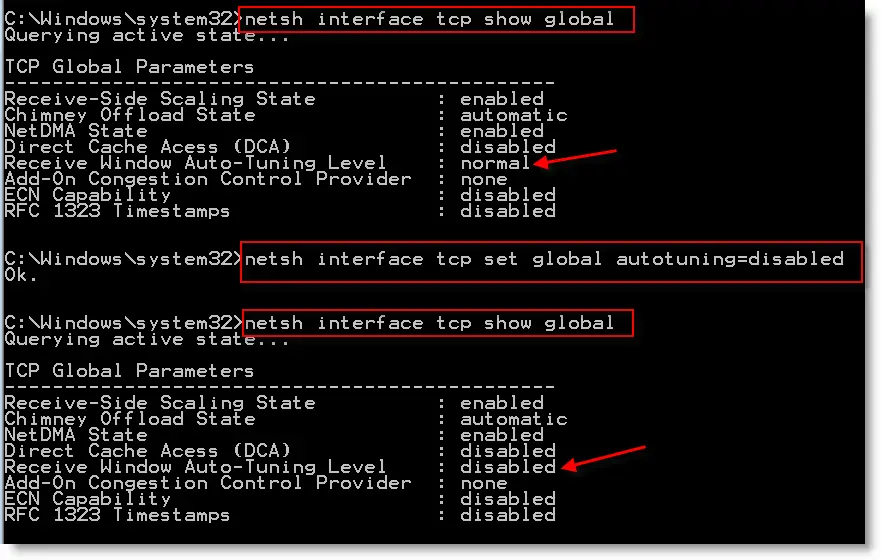
1) Disable Autotuning
Disabling autotuning will help much on DNS lookup and network discovery. It improves the data transfer speed also over the network. Disabling autotuning in windows 7 is very similar to Windows vista method. Read more here about disabling autotuning in windows vista.
To recap important steps,
Start command prompt as administrator, and follow the commands as shown in below example.
Windows 7 Network slow
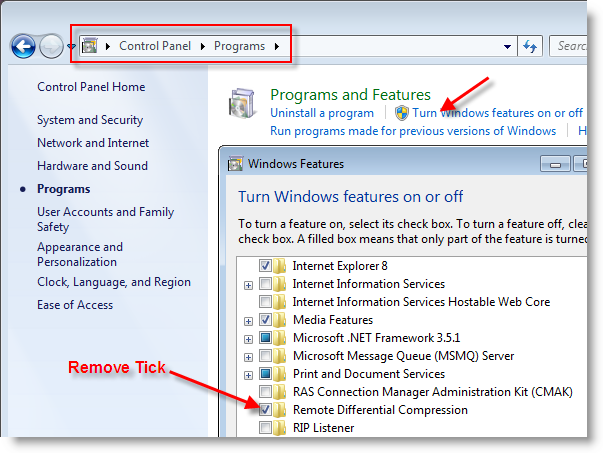
2) Remove RDC ( Remote Differential Compression)
This feature introduced with Windows Vista to transfer data over network in compressed format. The same RDC feature continued in Windows 7 also. Since most of the old operating systems came before vista do not support this RDC feature, it slows down network data transfer in windows 7. You can remove this RDC (Remote Differential Compression) in windows 7 by visiting control panel and programs and features. Click on ‘Turn Windows features on or off’, as shown below.
Remove RDC ( Remote Differential Compression) in Vista
Windows 7 Network slow
3) Remove IPv6 from network properties.
If your internal or external networks do not  require  IPv6 protocol, better remove it under network connection properties. Keeping IPv6 in your computer sometimes slows down network by trying to register IPv6 addresses, or trying to get IPv6 address, or trying to resolve IPv6. Better remove it if it’s not required.
Remove IPv6 in Windows Vista
4) Clear DNS Cache
You can remove any DNS cache from computer, so next time DNS request will be solved by updated DNS server. This will avoid your computer to try broken or changed DNS records from cache. To clear DNS cache, open command prompt as administrator and type ipconfig /flushdns
Ceaer DNS Cache in Vista
5) Disable Wireless Network and any additional (including Virtual adapters) network adapters.
If you will not be using wireless network or it’s your secondary network, I recommend you to disable wireless network in windows 7 under network connection.  If it’s enabled, windows 7 computer will be trying to connect available wireless network around you, and trying to login though its network. Loading your profiles and start up programs will be slow while booting because of this.
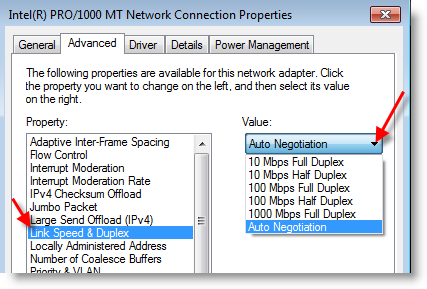
6) Modifying Link Speed & Duplex Value in Network adapter Properties.
This step also helps sometimes when you face problem with windows 7 network slow. I can’t say which option will work better, because it depends on your physical network setup (network adapter, cable type, LAN speed and network switch). By default it is set for Auto Negotiation. But you can play around with Value options and find out which is working better for your computer and network.
Windows 7 Network slow
I’m sure above steps will help to solve windows 7 network slow. Feel free to suggest any additional steps you did to solve windows 7 network slow, or problems you face to fix it.